

CAV MEMBERS PORTAL – INSTRUCTIONS (June 2026)
The Colostomy Association of Victoria Inc. has developed an online portal similar to the order form members may be familiar with on our website. The portal provides members with a secure online space to submit orders for their SAS products, track their ordering history, make payments, and update their profile as required, all at the same time. While orders can continue to be submitted via the online web form or email to info@colovic.org.au, some members may find that conducting these activities through the portal results in a more efficient and structured experience. Eligible Members are invited to register for access to the CAV Members Portal here.
If you would prefer to speak to someone, you can contact CAV by email at info@colovic.org.au or by telephone on 03 9650 1666.
PRIOR TO REGISTRATION the applicant must:
1.1 Ensure the person being registered is a current CAV member and has a Stoma Appliance Scheme (SAS) Number.
1.2 Check with CAV that the member’s full name as it appears on the member’s Medicare card matches the name saved on our system. (Only the SURNAME will be required for registration.)
1.3 Use that same SURNAME in the correct field during registration.
1.4 The CAV Member Portal requires that an email address is entered as the Username upon registration. This email address will be the destination for all Electronic Communication with CAV regarding all Portal activity. Please review inbox settings and ensure emails from no-reply@colovic.org.au are marked as safe.
2.1 Any current member of the Colostomy Association of Victoria (CAV) who can meet all financial responsibilities as per the CAV Member Portal Terms and Conditions* and who has read and understood the details of Instruction 1.
2.2 Any individual permitted to act on behalf of a current CAV member, who can personally meet all financial responsibilities as per the CAV Member Portal Terms and Conditions* and who has read and understood the details of Instruction 1, may register for and use a CAV Member Portal account.
*Any third party, agency, relative, carer or friend may use the portal on behalf of, or assist a member with use of, a portal account with the account holder’s permission. CAV is unable to provide portal account access credentials to anyone except the member or an authorised third party. See the CAV Privacy Policy.
3.1 An SAS Number – The CAV portal account must always be held in the name of a CAV member with a Stoma Appliance Scheme Number.
3.2 An Email Address – An email address must be used as the Username at registration. All Electronic Communication regarding portal activity will be delivered to this email address. See Terms & Conditions Section 3.
3.3 The Member’s surname – As it appears on their Medicare Card.
3.4 A phone number, whilst optional, can be helpful to have on file.
Note: Allow up to 3 business days for registration to be approved by the CAV Portal Officer (CPO).
Note: Once registration is approved, an email will be sent with a request to Reset Password (see Instruction 7). Keep this safe as it will be required each time you need to log onto the portal.
4.1 Portal Accounts are automatically refreshed with the latest information from our internal systems every 30 minutes. Allow up to 3 business days for payments made directly into our bank account to reflect in the portal credit balance.
5.1 The Username is the applicant’s active email account that is on file at CAV.
If the original email address used to register for the portal can no longer be accessed, take the following steps:
6.1 Log onto the portal account using the original log in credentials. (Use the inaccessible email address.)
6.2 Update the email address in the profile section to the new email address. Save, and log out of the portal account. (This will save the new email address into the Member’s CAV Account.)
6.3 Revisit portal.colovic.au and click the Forgot Password tile. A password reset link will be sent by email to the new address. Reset the password by following the prompts.
6.4 Use the updated email and password to access the portal account for all future logins.
7.1 To Reset Password:
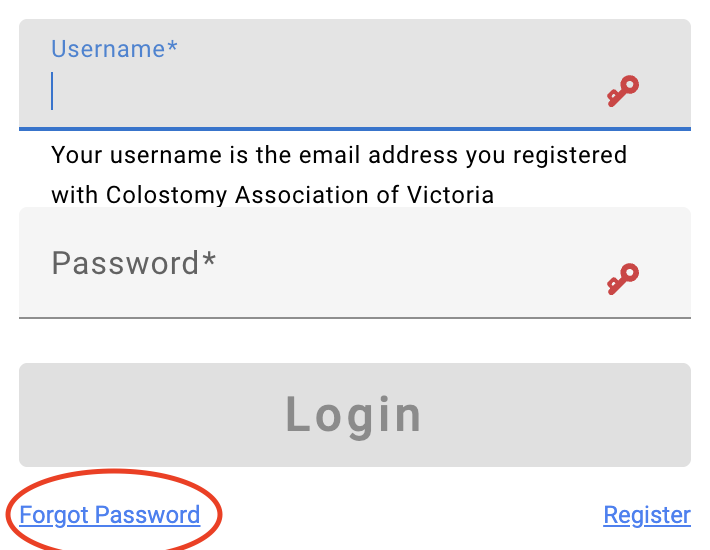
7.1.1 Go to the portal login page.
7.1.2 Select the Forgot Password link.
Enter the original email address used for registration, or a new email address if access to the original one is not available.
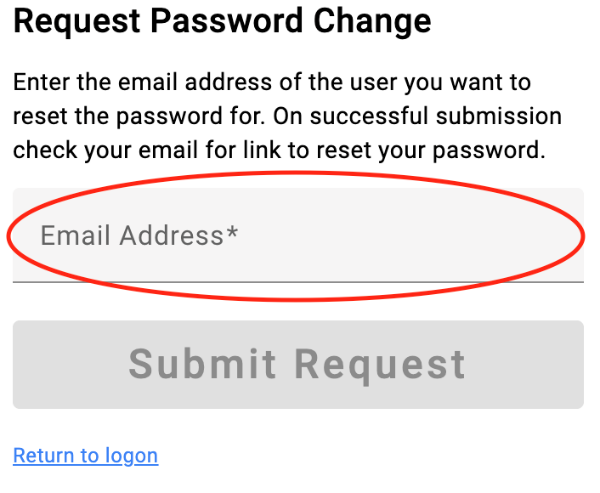
7.1.3 Select Submit request.
7.1.4 An email will be sent to the nominated email address with a link to reset the password. The link can be selected directly or copied into a web browser. If the email does not arrive within 15 minutes, the spam or junk folder should be checked. The link will only work for 24 hours.
7.1.5 Follow the prompts to set a new password. A password must be at least 6 characters and CAV recommends a combination of alpha and numeric characters plus a symbol.
8.1 The CAV Member Portal works best on most modern browsers across devices. For best results, try using Google Chrome on a Windows PC if issues arise.
8.2 Some members have reported difficulties submitting their portal order via an iPad.
8.3 The CAV Member Portal is not supported by Internet Explorer and cannot be used on an Android device using a SAMSUNG browser at this time.
9.1 COLOUR GUIDE
CAV classifies orders with adherence to SAS Schedule allowance. The CAV Member Portal features a colouring system behind the PACKS quantity tile that can be helpful, especially when adding new products or using the Two Month order cycle.
The Colour Guide is a visual reference that can alert you to potential supply “issues” when placing an order. It is a guide only.
Indicates that the quantity of packs requested is less than or equal to the ONE MONTH SAS ENTITLEMENT for that product.
Indicates that the quantity of packs requested exceeds, but is less than or equal to, TWICE the ONE MONTH SAS ENTITLEMENT for that product.
Indicates that the quantity of packs likely exceeds the SAS allowance for TWO MONTHS, and would mean that a PB050 form for extra allowance needs to be active on the member account.
A CAV PORTAL OFFICER will assess every cart submitted and make any required changes to ensure that the activated order meets ALL SAS ENTITLEMENT GUIDELINES.
Where an Application for Additional Stoma Supplies (PB050) is in effect, Two Month orders are not available. Users can select a pack quantity for these products up to the allowance set out on the PB050, and the colour tile can be disregarded. Any other products in the cart MUST fall inside a One Month supply allowance or the cart will be rejected.
All submitted carts are classified as either a ONE MONTH or TWO MONTH supply order. The classification is based on the allowances set out in the SAS Schedule.
9.2 Take care determining and entering ALL new item codes
9.2.1 Always ensure that the correct item code is entered, as data entry errors are common and many codes are complex.
9.2.2 Take particular care with characters that can be easily confused, such as “S” and “5”, or “I” and “1”. Similarly, digits like “6” and “8” can occasionally appear unclear.
9.2.3 Until Order History appears under the Previous Orders panel in the portal, it is best to use packing slips from earlier deliveries to confirm item codes.
9.2.4 In most cases, the appropriate code will have been provided by a Stomal Therapy Nurse (STN) or General Practitioner (GP). If uncertain, contact the STN or GP to confirm the correct code.
9.2.5 The correct code to enter is the Company Code as listed on the Stoma Appliance Scheme (SAS) Schedule – not the SAS code or any other code found in promotional brochures or online. The SAS Schedule can also be used to verify manufacturer item codes.
9.2.6 If any item exceeds the One Month SAS allowance, it may affect both the classification of the order being made and impact the allowance for that item in the following month.
9.2.7 Where reasonable, the CPO will adjust orders to align with SAS entitlements. Orders that exceed SAS guidelines may be rejected.
9.2.8 Refer to the member’s Past Orders, or contact portal.officer@colovic.org.au, if unsure whether the member is entitled to the quantity being requested.
9.2.9 Members with more than one stoma must be sure to select the SAS number which corresponds to the item being ordered.
9.2.10 In the event of a cart rejection, postage/handling fees paid during the submission of that cart are applied as a credit to the Member’s CAV Account. The balance of the Member’s CAV Account will be used automatically for any future postage/handling fees.
Placing an order using the portal is a 3 step process:
10.1 Build the Cart
10.2 Review Cart, Address and Payments
10.3 Checkout
10.1 BUILD THE CART
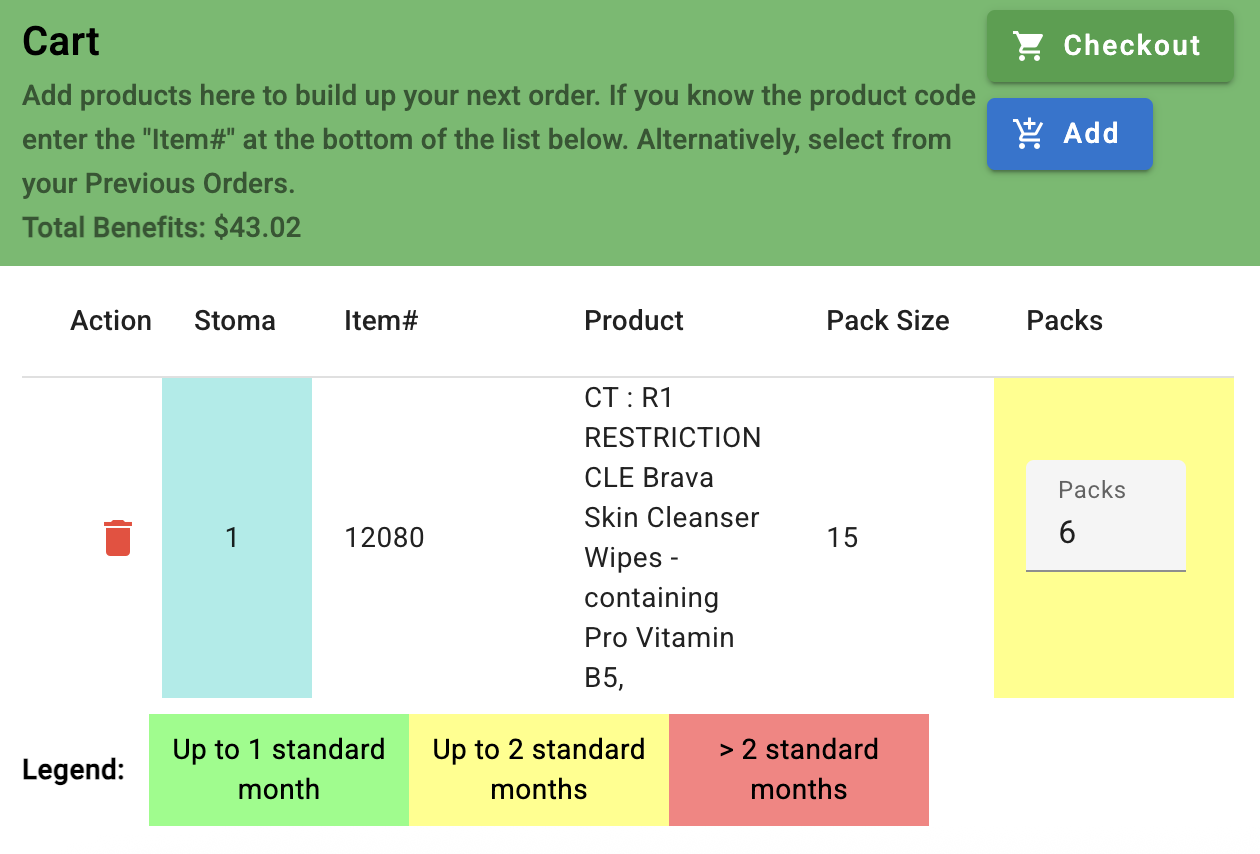
(The Cart section of the HOME screen)

(The Previous Products section of the HOME screen)
10.1.1 Adding products to the cart can be done several ways. Under the Previous Orders banner —  — activity can be viewed as:
 A list of previous orders (most recent at the top); or
 A list of previously supplied products.
To switch between the two different views, use the green Orders/Products switch (see green tiles above).
ALL ITEMS COPIED FROM PREVIOUS PRODUCTS WILL BE ADDED TO THE CART AT THE SAME QUANTITY AS PREVIOUSLY ORDERED.
10.1.2 ADD FROM THE ORDERS VIEW
Add a single product from a Previous Order: click  to reveal all the items selected in that Previous Order. Now copy items into the cart, one at a time, using this icon
  ; or
; or
Add an entire Previous Order: click  at the bottom left of Order view to copy the entire Previous Order into the cart.
10.1.3 ADD FROM THE PRODUCTS VIEW
Click to add individual products to the cart.
10.1.4 ADD A NEW ITEM
If an STN or GP has recommended a new product, you will need to confirm the item code and monthly allowance using the SAS Appliance Schedule. Once confirmed, add a new item to your cart by:
Clicking  located in the
  section on the left of the Home screen. A box will appear called Add Product to Cart.
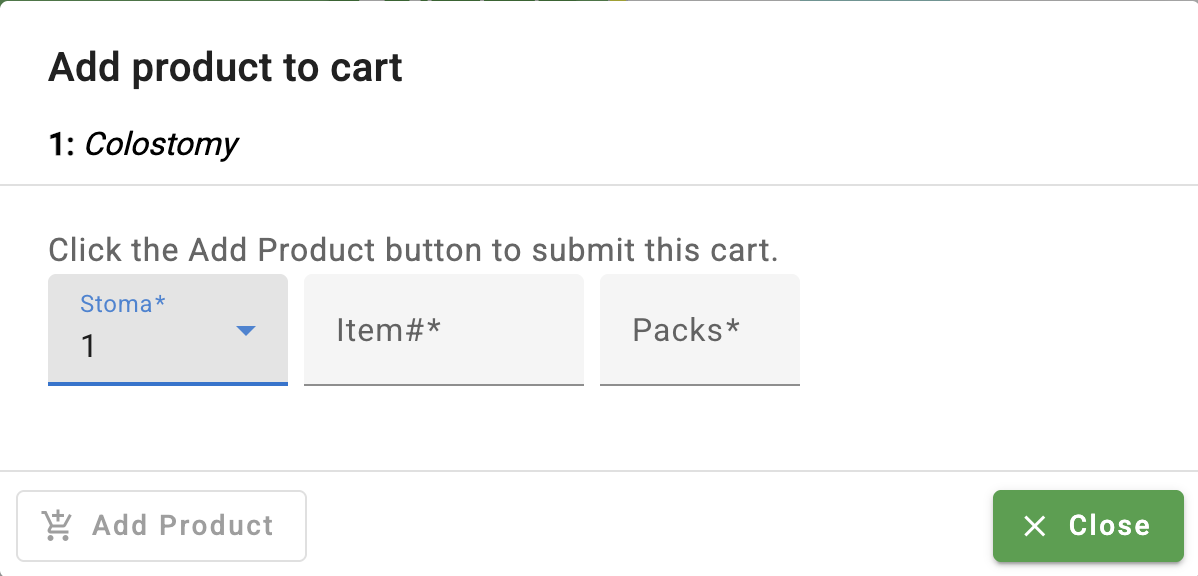

 to add the item to the cart.
 once complete.
10.2 REVIEW THE CART, ADDRESS & PAYMENTS
10.2.1 Review the cart and the items ordered.
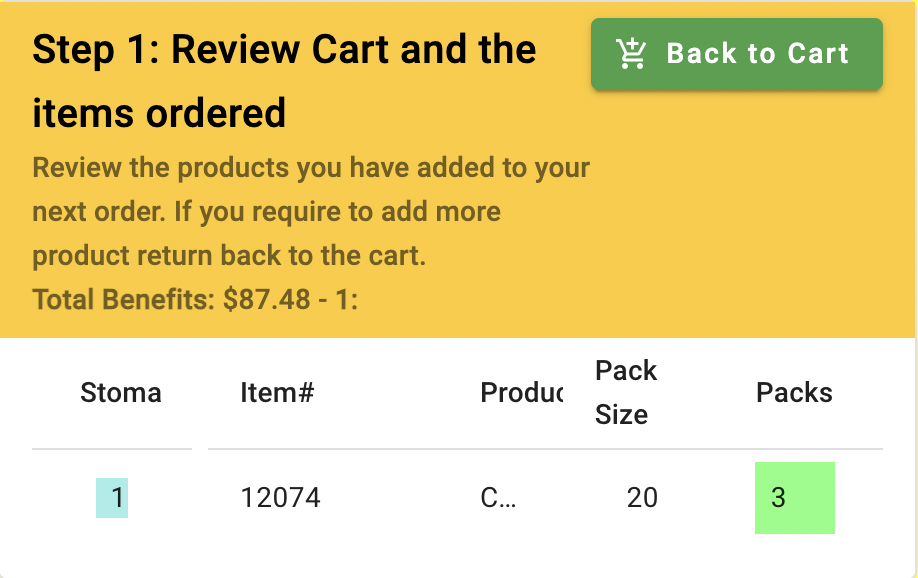
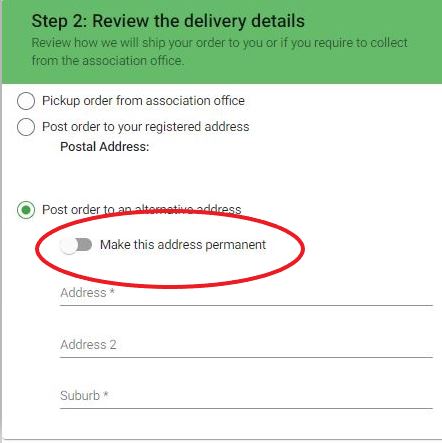
10.2.2 Review the delivery details. Select whether the order is to be collected or posted. If the order is to be posted, confirm the delivery address. If sending to an alternative postal address, select if the address change is to be permanent.
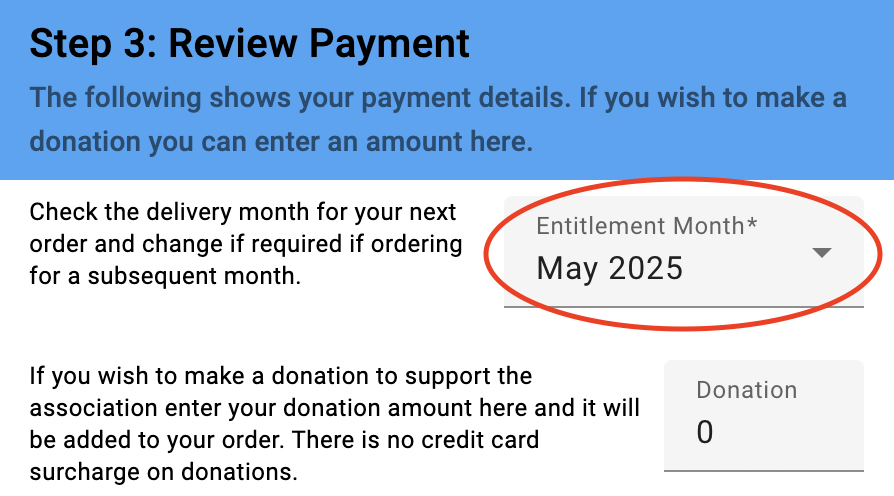
10.2.3 REVIEW PAYMENT – select the Entitlement Month.
Note that if ordering a Two Month supply order, the Entitlement Month should be the first month of the Two Month period. For example, if making a Two Month order for MAY and JUNE, enter May as shown here.
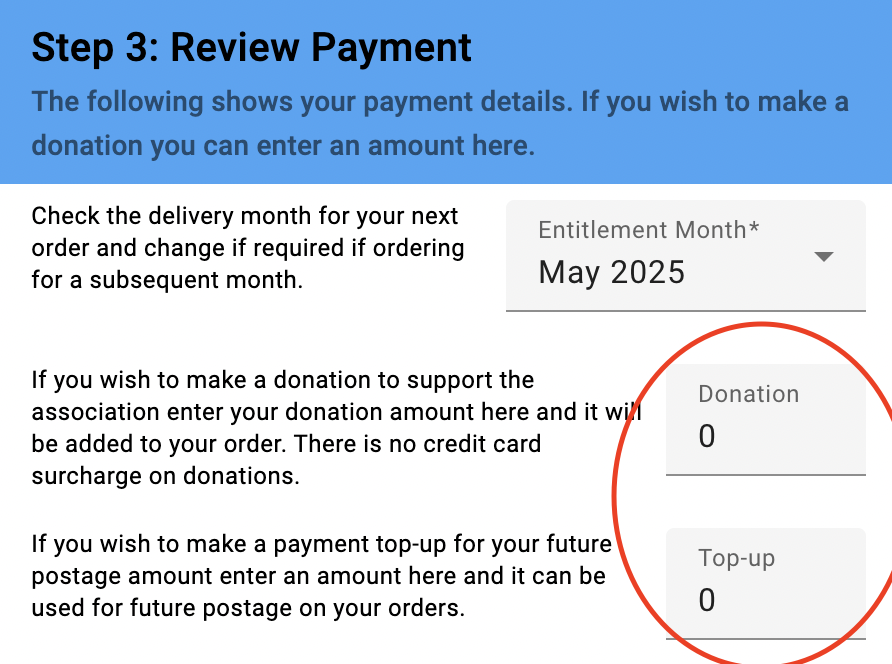
10.2.4 Add other payments. Portal users can choose to add payments other than the postage/handling fee (the postage/handling fee will be automatically added if post order is selected). Any remaining credit on the account after the cart is submitted remains available on the Member’s CAV account for future use.
10.3 CHECKOUT
10.3.1 Click the tile.
Note: Postage/handling fees for Two Month orders are charged in a different way to One Month orders. Before making a Two Month order, review Instruction 12, or CAV Member Portal Terms & Conditions section 6.h.
10.3.2 Review & confirm Medicare details. A box will appear asking for confirmation of Medicare details. Confirm that the details are correct, then select the  tile.
tile.
(The portal will use available credit on the Member’s CAV account first – see Instruction 15. Residual owing amounts will require payment via credit card.)
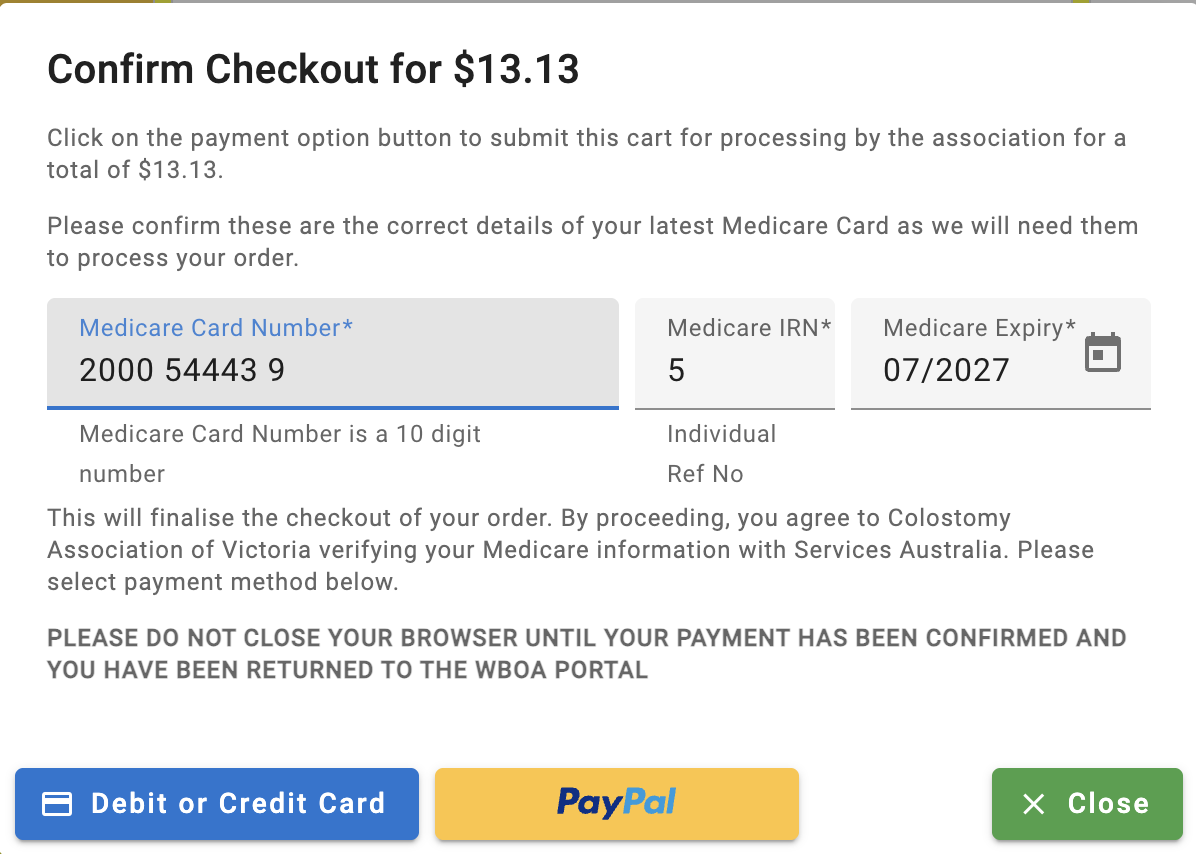
10.3.3 Follow the prompts to make payment. Once payment has been confirmed, users receive a message that the cart has been submitted. They will also receive an email confirming submission of the cart from no-reply@colovic.org.au.
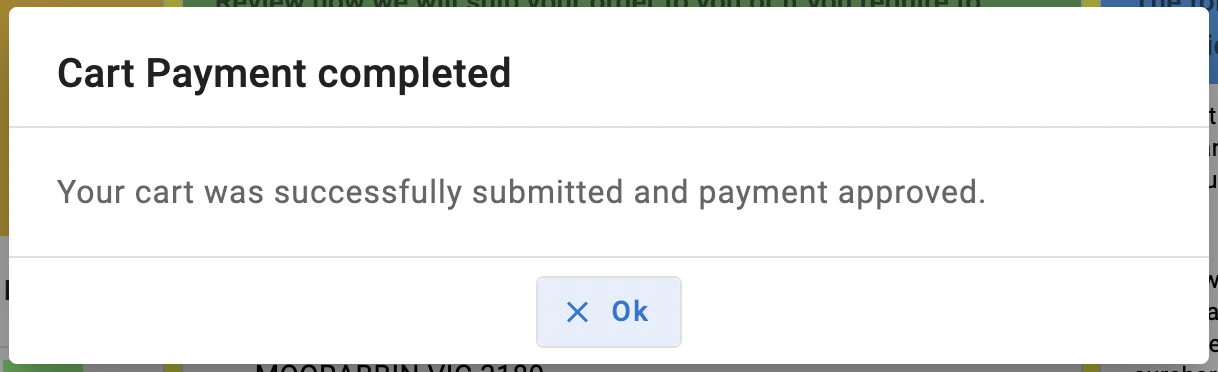
10.3.4 All orders and requests will be reviewed within 3 business days and either approved, adjusted or rejected.
10.3.5 An email will be sent to the email address on file for the member from no-reply@colovic.org.au confirming the review and providing details of any changes that were made to the order to meet scheme guidelines.
10.3.6 Submitted carts pending review are displayed in the yellow box in the bottom right of the main portal screen. A cart can be recalled and changed before it is reviewed – see Instruction 18.
Stoma Appliance Scheme Guidelines allow for members to adopt a Two Month supply ordering cycle once a stoma is 6 months old.
It is not necessary to notify or indicate that an order is for Two Month supply, as it is inferred by the quantities selected in the submitted cart. The Portal Officer will identify the order as a Two Month order during the cart review process.
The items requested in a submitted cart may need to be modified by the Portal Officer depending on previous history and/or SAS rules. Notification via email will be sent where quantities requested have been adjusted or removed.
11.1 Add products to the cart as per Instruction 10. The quantity will automatically default to a One Month supply (indicated by the green background behind the quantity).
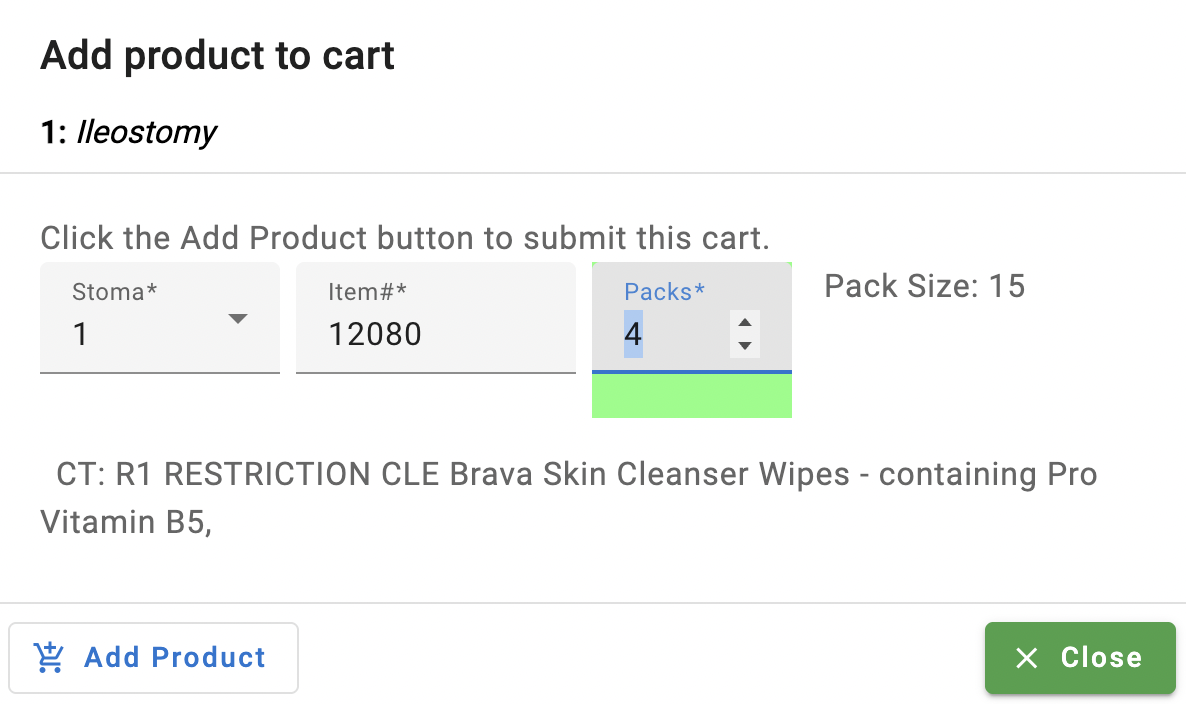
11.2 Manually adjust the quantity of packs required using the up/down arrow beside the quantity value. The packs column colour will change to yellow when the allowance increases past the One Month to the Two Month allowance.
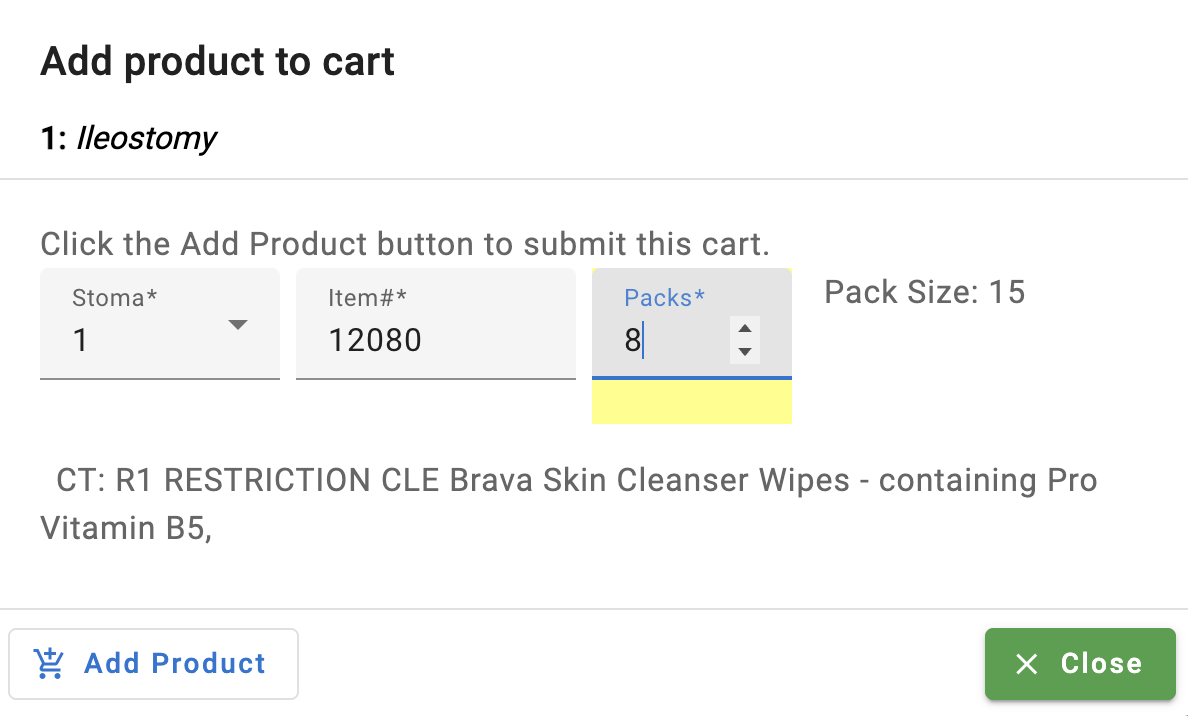
Note: If the standard Two Month allowance of a product is exceeded, its quantity colour will change to red.
Where an Application for Additional Stoma Supplies (PB050) is in effect, Two Month orders are not available. Users can select a pack quantity for these products up to the allowance set out on the PB050, and the colour tile can be disregarded. Any other products in the cart MUST fall inside a One Month supply allowance or the cart will be rejected.
11.3 Review cart and address for a Two Month order: use the review process as outlined in Instruction 10.2.
11.4 Review payment for a Two Month order: select the month of entitlement. When ordering a Two Month order, the month of entitlement should be the first month of the Two Month period.
EXAMPLE: If the Two Month supply order is for the MAY and JUNE allowances, enter May as shown here.
11.5 ADD OTHER PAYMENTS. Add an optional Donation or Top-up payment if desired.
Two Month orders made through the CAV Member Portal still attract a $25.00 fee – refer to Instruction 12.
The account may be placed into credit using the top up feature at the Review Payment step. Any credit on the account left over after the cart is submitted can be used against any future postage/handling fees incurred while using the portal account or otherwise.
Yes, they do…
13.1 COLOUR GUIDE – the portal colours the PACKS quantity tile green, yellow or red to indicate how the requested quantity sits against the SAS allowance. See Instruction 9.1 for the full Colour Guide.
13.2 ENTERING ITEM CODES – take care determining and entering all new item codes. See Instruction 9.2 for the full guidance, including which code to use, characters that are easily confused, and what happens when an item exceeds its allowance.
13.3 If unsure whether a member is entitled to the quantity being requested, always refer to the member’s past orders or contact portal.officer@colovic.org.au.
All rates are the same for all CAV members across all ordering and payment methods. You pay only the amount listed for each item.
In addition to the existing payment methods we offer, Portal users will have access to Eway for any transactions, plus a transparent log within the Portal account to help keep track of charges and payments.
Choose to pay from:
Option A – EWAY: Enter your credit card details as required.
Option B – CREDIT: Bring your Member’s CAV Account into credit. Any credit showing in a user Portal Account will be automatically used against postage/handling fees, or can be manually applied against other costs or donations.
PORTAL ACCOUNTS CAN BE BROUGHT INTO CREDIT BY:
The Stoma Appliance Scheme makes additional ostomy related items available to eligible people who need them. These items are funded by Medicare and are chosen from the Scheme’s official item list. Selection is made in consultation with a Stoma Nurse or another medical professional.
Where an Application for Additional Stoma Supplies (PB050) is in effect, Two Month orders are not available. Users can select a pack quantity for these products up to the allowance set out on the PB050, and the colour tile can be disregarded. Any other products in the cart MUST fall inside a One Month supply allowance or the cart will be rejected.
Yes. Once logged in, members can view their CAV Account balance at any time. Any credit available will be automatically used against postage/handling fees if applicable, and can be manually applied against any other costs or donations.
17.1 To add credit to the account, use one of the available top-up methods outlined in Instruction 15 or Instruction 20. Users are free to credit any amount they choose.
17.2 Credit card payments will be available for use almost immediately, but allow up to three business days for direct deposits to bank or cheque payments to appear in the CAV Portal balance. After that, users can apply the funds against any other costs or donations as needed.
This approach allows members to place orders without using EWAY. Carts can only be submitted if the Member’s CAV Account shows a $0.00 balance at checkout.
18.1 Submitted carts pending review are displayed in the yellow box in the bottom right of the main portal screen.

The cart may be recalled prior to a Portal Officer review outcome by clicking then clicking  .
.
If the tile does not appear, the cart has been reviewed and an outcome has been sent to the user email address.
18.2 Make the required changes as per Instruction 10.
18.3 Check out as per Instruction 10.3.
To amend an order which has already been reviewed and approved, contact portal.officer@colovic.org.au. Requests will be assessed by the CPO and may not be possible in some circumstances.
If a product added to a cart generates a warning which says “Item# does not exist”, it means that the item is not available.
Users should ensure that the product code is entered correctly into the Item# field, and should refer to the SAS guidelines as well as Instruction 9. Remember: the SAS guidelines list the code required for ordering as the COMPANY CODE on the Schedule tool and the downloadable copy.
If the code is correct and the warning persists, please contact CAV on 03 9650 1666 for more information.
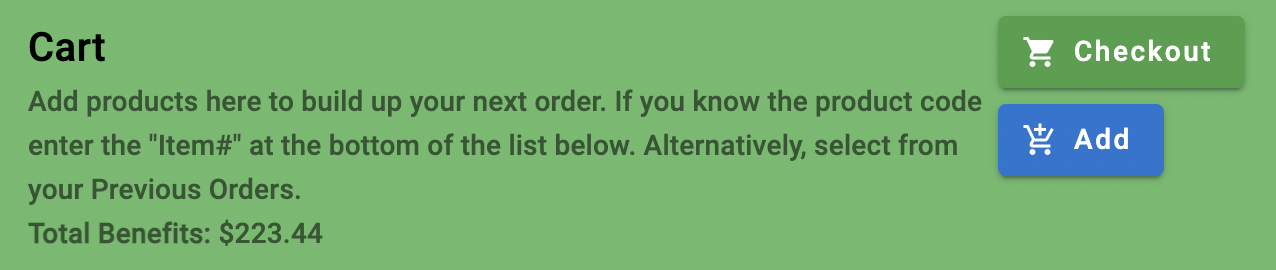
20.1 Cart checkout. Once the cart has been prepared, select checkout.
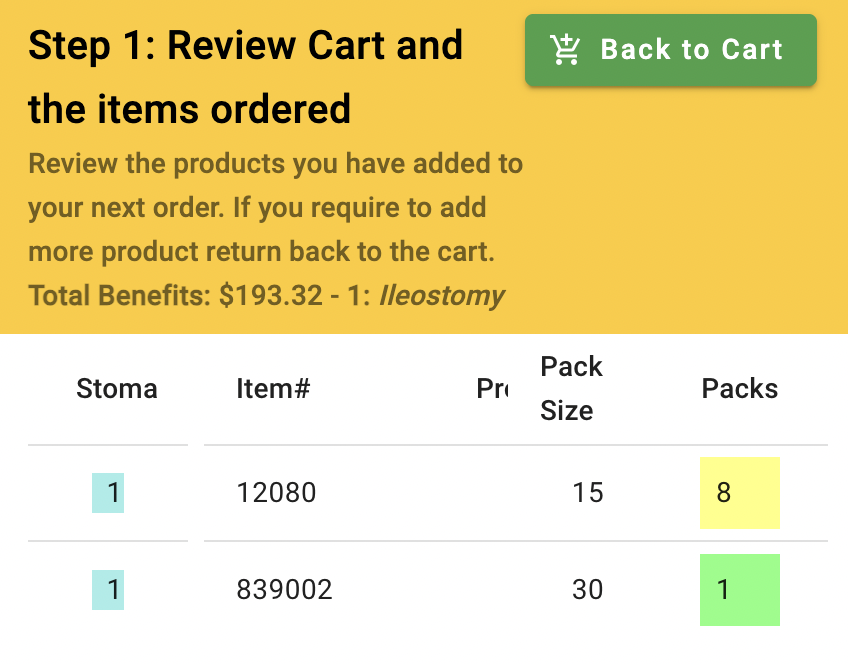
20.2 Review the cart and the items ordered.
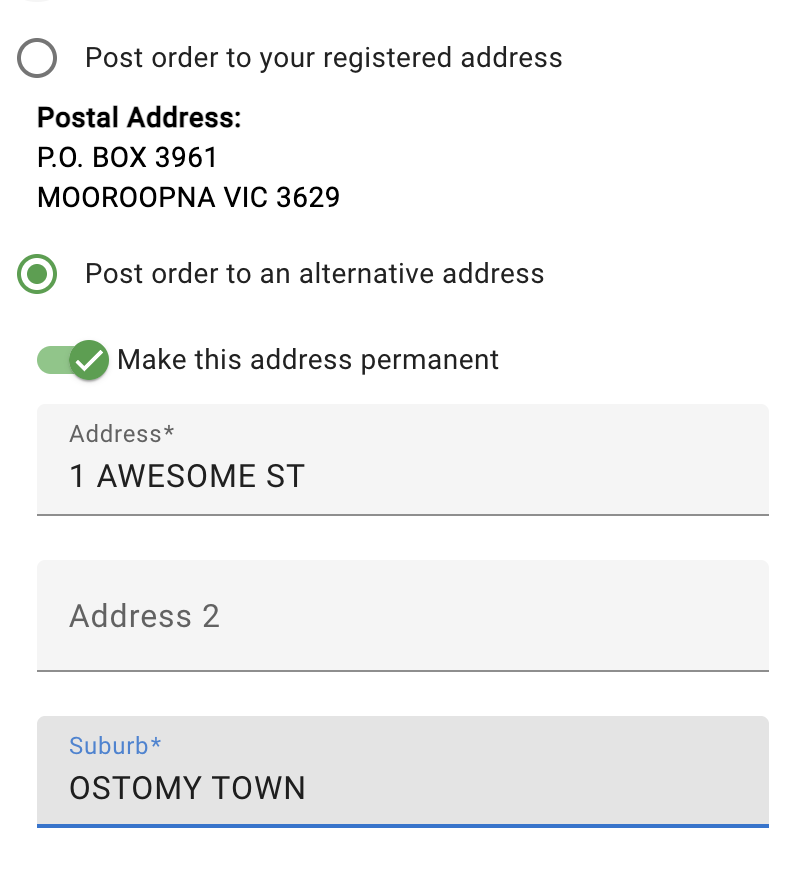
20.3 Review the delivery details and change the address if required as a one-off (toggle the ‘make this address permanent’ switch to copy the new address onto all records permanently).
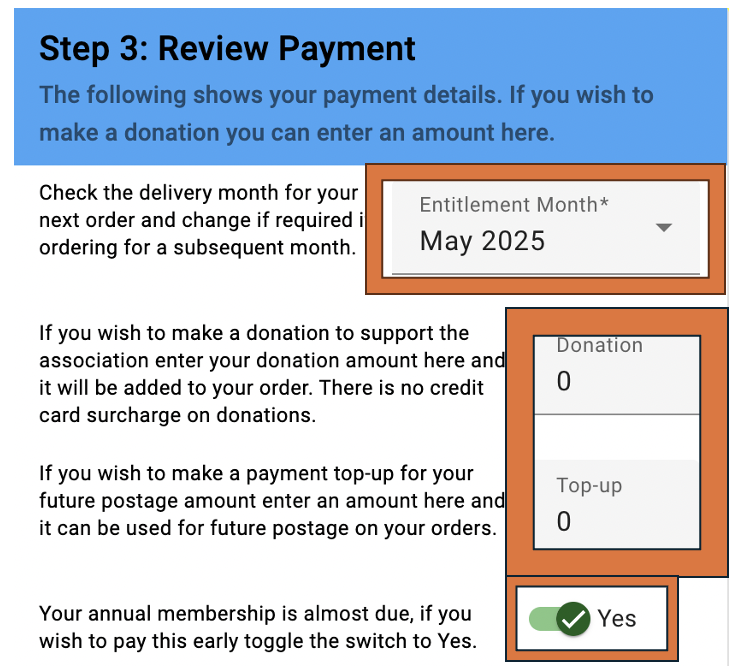
20.4 Review payment.
Note: Check the delivery month – remember, orders will be assessed within scheme guidelines.
20.5 Add any other payments deemed necessary (i.e. donation, top up, subscription).
20.6 Select Submit Checkout. A box will pop up asking for verification of the Medicare information.
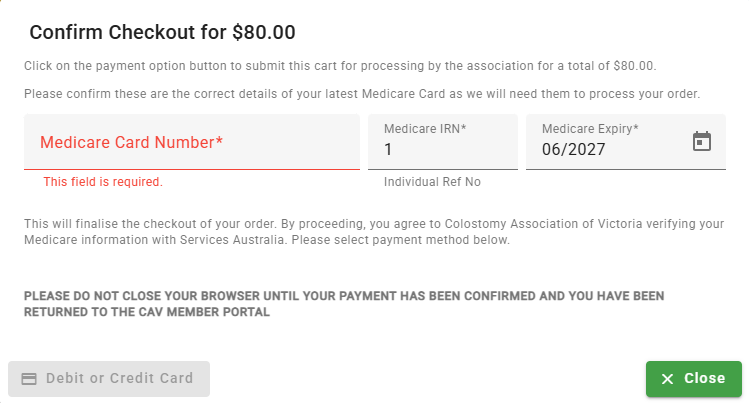
20.6.1 Review the Medicare information and select the payment method (see Instruction 15), then follow the prompts.
Note:
20.7 Once payment has been successful, click OK and await cart approval by the Portal Officer.
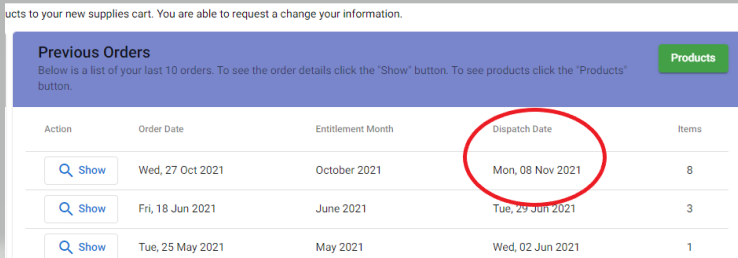
Under the Previous Orders banner, there is a column titled Dispatch Date*. You can be reasonably certain* that your order is either on its way via Australia Post, or awaiting pick up at the CAV office, THE DAY AFTER the dispatch date.
*This does not apply where CAV has been notified by a supplier that a product is out of stock – see Instruction 23.
To upload a copy of a Health Care Card, Pension Card or Medicare Card using the portal:
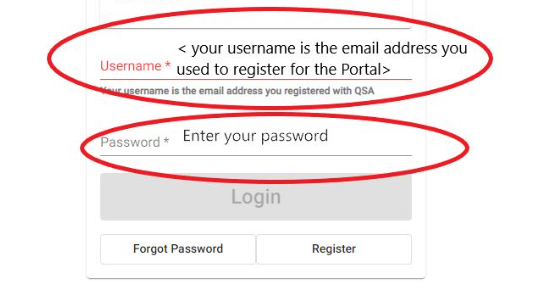
22.1 Log in to the portal in the usual way.
22.2 Select Profile on the Members Summary tab.
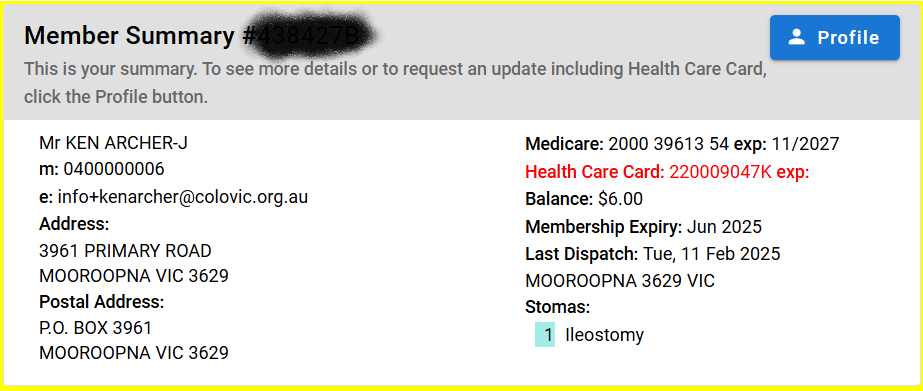
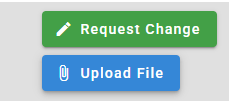
22.3 Select Upload File.
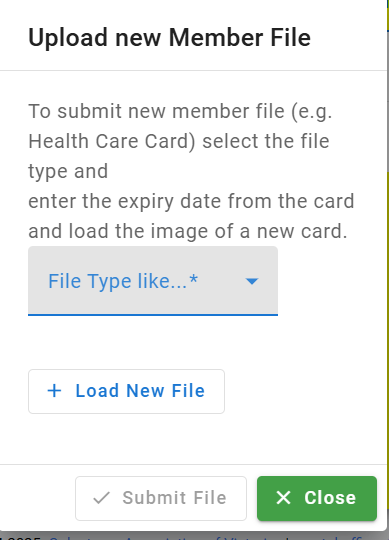
A pop-up box will appear. Select the file type.
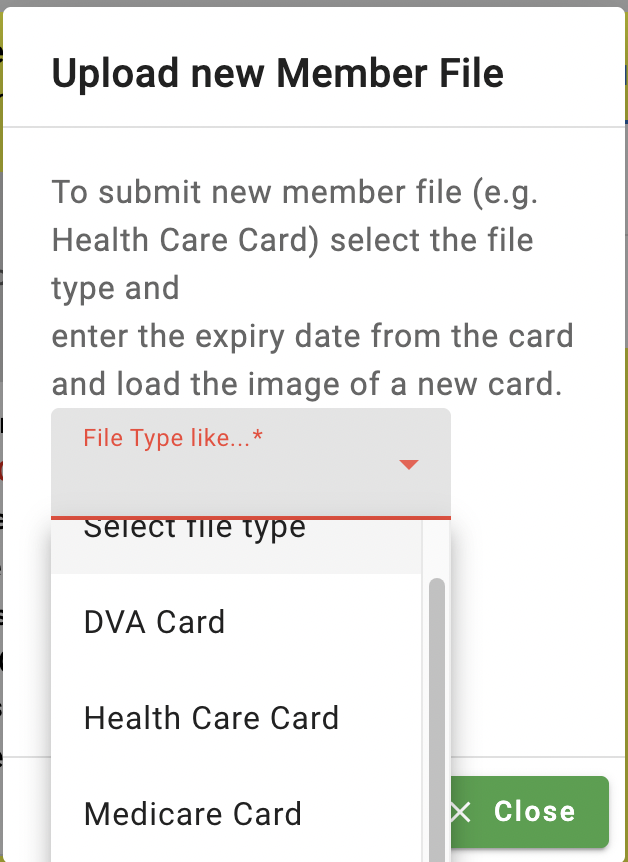
22.4 Choose the relevant file type.
22.5 Enter the expiry date of the card/Application for Additional Stoma Supplies, and upload an electronic copy of the file.
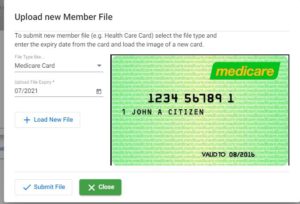
22.6 Select Submit File.
If a product is unavailable, an alternative product may be supplied only if a member has placed an order for the alternative product. Members should be advised to seek advice from an STN or their medical practitioner prior to selecting an alternative product.
ANNUAL SUBSCRIPTION FOR ALL CAV MEMBERS FALLS DUE ON JULY 1st EVERY YEAR.
24.1 To pay annual subscription through the portal: log in to the portal using the username email and password.
24.2 Go straight to Checkout.
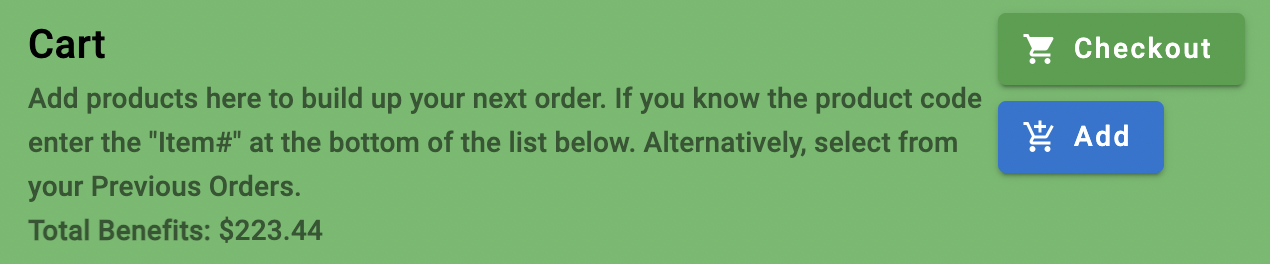
24.3 Choose the financial year to be paid for:
24.3.1 For the current financial year – the subscription renewal will automatically populate if the subscription has not yet been renewed.
24.3.2 To pay for the next year prior to June 30: go to the Review Payment panel; an option to renew the subscription will be made available, but only from March of each calendar year.
24.3.3 Toggle the option to YES and the subscription for the next year will populate. (For the concession rate of subscription to apply, Concession Card holders will need to have already uploaded their concession card to the portal using the profile > file upload function, and received confirmation that the card has been accepted.)
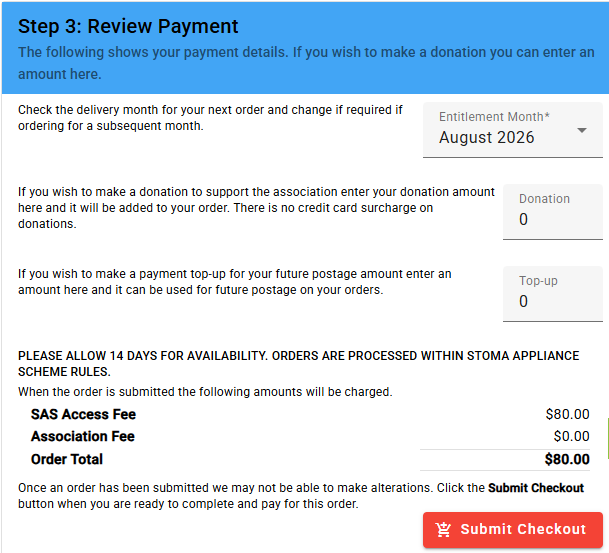
24.3.4 Select Submit Checkout, and a box will pop up asking for verification of Medicare details.
24.3.5 Review the Medicare information, make any changes necessary, then select the desired payment method. See Instruction 15 – Portal payment methods.
24.3.6 Follow the prompts to complete payment.
24.3.7 The system will divert the user back to the portal and the transaction will be complete.
25.1 A user can choose to engage 2-Factor Authentication (2FA) if desired. CAV recommends all portal users enable 2FA on the portal account as soon as possible. 2FA should only be disabled for the purpose of changing the device upon which the authenticator app is installed.
25.2 To enable 2FA on the account:
25.2.1 Download an authenticator app from either the Apple App Store or Google Play Store to a different device. We recommend Google Authenticator. (CAV recommends using a smartphone with an Android or iOS system for the purpose of using 2FA on the CAV Member Portal account, although the authenticators will work using the versions on other devices including laptops and iPads – see here for more information on the importance and usage of 2FA features on accounts.)
25.2.2 Select Enable two factor authentication under the User menu (top right of the portal home page).
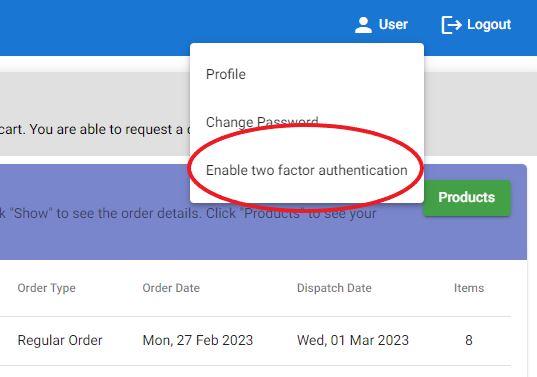
A QR code will appear.
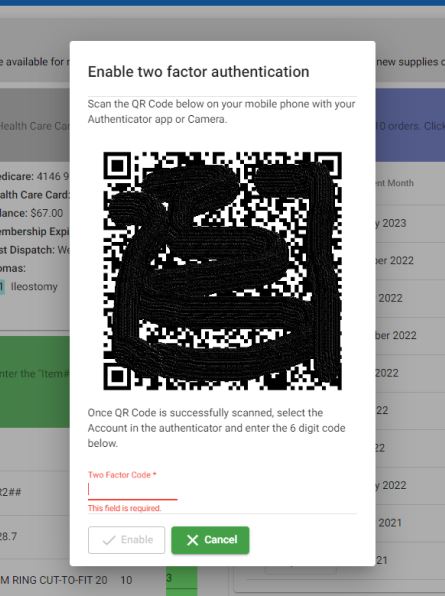
25.2.3 Open the authenticator app on the device, select add (+) and scan the QR code.
25.2.4 Scanning the QR code will link and add the Portal service to the authenticator app (which will appear as Member Portal – CAV).
25.2.5 Obtain the time-based one-time password (TOTP) and enter this into the two-factor code field within the Portal Account. Enter the code where indicated, and select Enable.
2FA is now enabled.
25.3 To disable 2FA on the account:
25.3.1 Select Disable two factor authentication under the user menu (top right of the portal homepage).
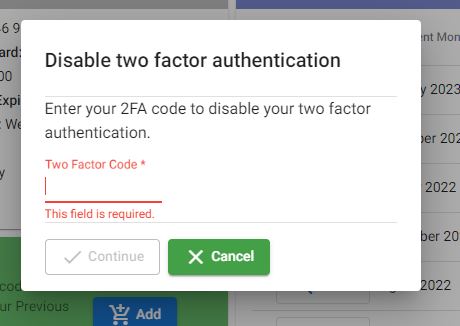
25.3.2 A time-based one-time password (TOTP) will be requested. This can be obtained from the authenticator app.
25.3.3 Enter the TOTP as required to disable 2FA and select Disable.
2FA should now be disabled.
26.1 Portal Account technical support is not available at CAV. Requests for any assistance with the CAV Member Portal must be directed to portal.officer@colovic.org.au.
The portal is designed to promote self-help, so solutions to issues can be found in these CAV Member Portal Instructions, or in the CAV Member Portal Terms and Conditions, the CAV Privacy Policy or the CAV Code of Conduct. Answers to other issues can be found below.
26.2 I have completed my cart but can’t check out.
Once the cart has been completed and reviewed, select Checkout; a box will appear requesting confirmation of Medicare details. If this does not occur, it’s likely that the pop-up has been blocked by the device’s security settings. If this has occurred, there should be an indication in the top right-hand corner of the screen that looks like this:
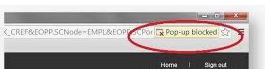
Instructions to resolve the pop-up issue can be found here for Google Chrome, but users may need to seek different help if they are using a different browser.
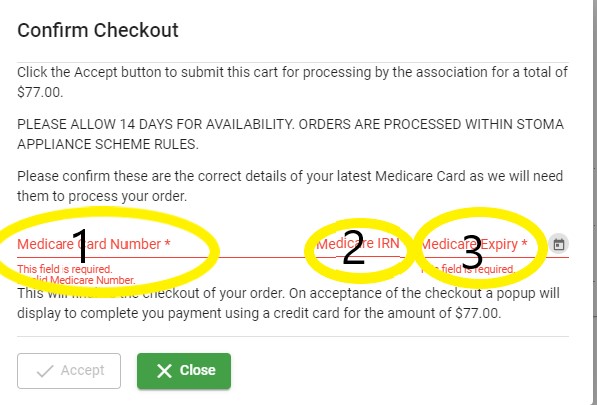
26.3 The portal won’t accept my Medicare Card details.
Medicare Card details should contain 3 pieces of information*:
*The last name on the card must match the one on the CAV account.
Users can toggle between the information fields using the TAB key.
26.4 My payment keeps getting rejected.
The payment processing platform integrated into the CAV Member Portal is a secure payment gateway operated by an external third party (Eway). CAV cannot assist with payment issues handled by third parties. If the problem persists, see Instruction 15.
26.5 I have processed my payment, but I cannot see it in my portal account.
This may occur if a network connection drops out immediately after a payment has been made, or if a browser window is closed before our secure payment gateway can send payment information back to the portal account. In this situation, contact portal.officer@colovic.org.au.
Payments will be verified with the relevant third-party provider and manually updated to the portal account.
The CAV Portal Officer (CPO) reviews all submitted carts requested by the user and approves, adjusts or rejects them based on their adherence to the guidelines of the Stoma Appliance Scheme, the CAV Member Portal Terms and Conditions and the CAV Privacy Policy – including: